

Start your Analytics-DA-201 Exam Questions Preparation with Updated 176 Questions
A Fully Updated 2026 Analytics-DA-201 Exam Dumps - PDF Questions and Testing Engine
NEW QUESTION # 87
You have a data source that has two tables named Table1 and Table2. Table1 is the primary table and Table2 is the secondary table.
You want to combine the tables by using Tableau Prep. The combined table must include only values from Table1 that do NOT match any values in Table2. The field values from Table2 must appear as null values.
Which type of join should you use?
- A. Full outer
- B. Union
- C. Inner
- D. Left
- E. Left only
Answer: E
Explanation:
To combine the tables by using Tableau Prep and include only values from Table1 that do not match any values in Table2, you should use a left only join. A left only join is a type of join that returns only the rows from the primary table (Table1) that have no matching rows in the secondary table (Table2). The field values from Table2 will appear as null values in the combined table. A left only join is also known as an anti-join or an exclusion join. References:
* Tableau Certified Data Analyst Exam Prep Guide, page 9, section "Preparing Data"
* Tableau Help: Join Your Data
* Tableau Help: Left Only Join
NEW QUESTION # 88
You have the following dataset.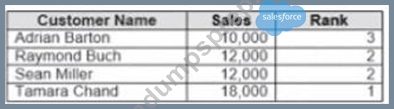
Yon need to calculate the ranking shown in the Rank field.
How should you complete the formula? (Use the dropdowns in the Answer Area to select the correct options to complete the formula ?
Answer:
Explanation:
Explanation:
To calculate the ranking shown in the Rank field, you need to use the RANK_UNIQUE function, which returns the unique rank of each value in a partition. You need to specify the expression as SUM([Sales]), which calculates the total sales for each product. You also need to specify the order as descending, which means that the highest sales will have the lowest rank. Finally, you need to specify the restart as every
[Category], which means that the ranking will reset for each category. References: https://help.tableau.com
/current/pro/desktop/en-us/functions_functions_tablecalculation.htm https://help.tableau.com/current/pro
/desktop/en-us/calculations_calculatedfields_lod_rank.htm
NEW QUESTION # 89
You have a blank dashboard.
You want to add two sheets to the dashboard. The sheets must support the Show/Hide button.
To which two objects can you add the sheets? (Click the two appropriate Options in the Answer Area.)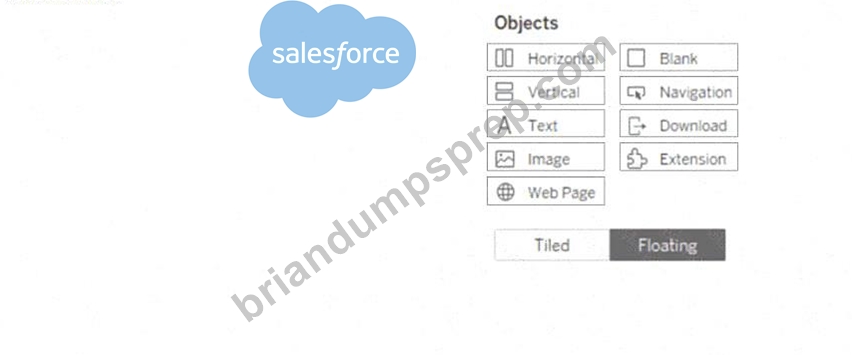
Answer:
Explanation: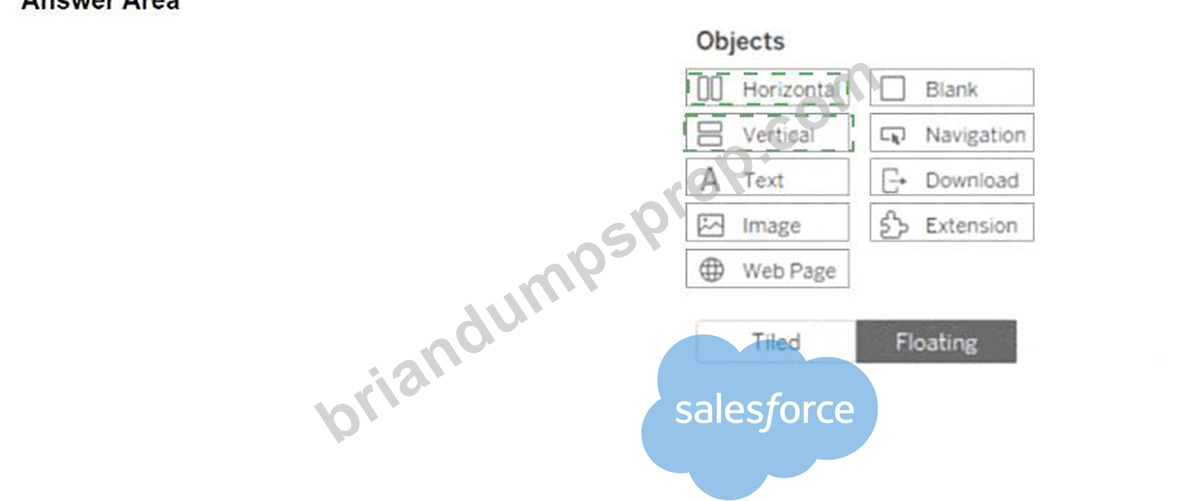
Explanation: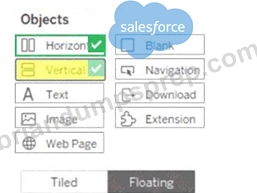
To add two sheets to the dashboard that support the Show/Hide button, you can add them to either a horizontal or a vertical container. A container is an object that can hold one or more sheets or other objects and allow you to arrange them in a layout. A Show/Hide button is a feature that lets you hide or show a container and its contents on the dashboard. You can add a Show/Hide button to any container, whether it is tiled or floating, by using the drop-down menu of the container and selecting "Add Show/Hide Button." You can also customize the appearance and behavior of the button.
To add a horizontal or a vertical container to the dashboard, you can drag them from the Objects pane to the dashboard. A horizontal container will arrange the sheets or objects horizontally, while a vertical container will arrange them vertically. You can then drag the sheets you want to add from the Sheets pane to the container. You can resize and reorder the sheets or objects within the container by using the handles and arrows.
The other objects in the Answer Area, such as text, image, web page, blank, navigation, download, and extension, do not support the Show/Hide button. They are either static elements that cannot hold other objects, or dynamic elements that require user interaction or external sources. You can add them to the dashboard as well, but they will not have the same functionality as a container with a Show/Hide button.
References:
Add Show/Hide Buttons - Tableau
Layout Containers - Tableau
NEW QUESTION # 90
You have the following primary data source that contains a dimension named Dorm_Code.
You receive the following secondary data source that contains updated dorm codes.
You need to bring the updated dorm codes into Tableau and use the codes in existing visualizations. The new dorm codes must use the existing field name of Dorm_Code.
What should you do?
- A. Bring in the secondary data source as a union.
- B. Create a data blend and select Edit Primary Aliases to replace the primary data source alias values with values from the secondary data source
- C. Bring in the secondary data source by using relationships. From the Data pane, right-click Dorm_Name select Replace References, and then select Dorm_Name_New
- D. Bring in the secondary table as a left join to the primary data source. From the Data Source page, select Create Calculated Field in the Dorm_Name field and enter [Dcrm_Name_New] in the calculation window
Answer: C
Explanation:
* Using relationships: You can use relationships to link the secondary data source with the primary data source based on a common field. This will allow you to use fields from both data sources in your visualization without creating new fields or duplicating data. You can then replace references to update the dimension values. For example, you can use relationships to link the updated dorm codes with the primary data source and then replace Dorm_Code with Dorm_Code_New in your visualization.
https://community.tableau.com/s/question/0D54T00000C5ldZSAR/update-data-view-based-on-dimension To update existing visualizations with new codes without changing the field name, using relationships to bring in the secondary data source is appropriate. Then using Replace References allows you to update the references from the old dorm codes to the new ones while maintaining the existing field name.
NEW QUESTION # 91
The following table displays the row-level data in a Tableau data source:
A Data Analyst creates this calculated field:
SUM(IF [Item] = 'A' THEN [Sales] END) / COUNT([Order ID])
What is the result of this aggregate calculation?
- A. 0
- B. An error
- C. 1
- D. 2
Answer: A
NEW QUESTION # 92
A Data Analyst is given the following table and asked to create a flow that adds a date field to the data. This field should automatically update as new dates (months) are added to the original table.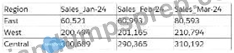
Which technique should the analyst use as the first step to achieve this in Tableau Prep?
- A. A wildcard search to pivot in the Pivot step
- B. An Aggregate step to reshape the data
- C. A Rows to Columns Pivot step
- D. A wildcard search for multiple tables in the Input step
Answer: A
NEW QUESTION # 93
You have a sales dataset that contains the following fields.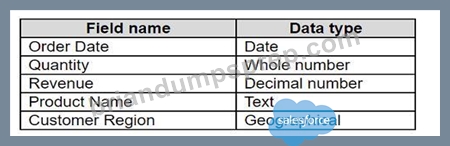
You need to analyze the average revenue per product in different regions over time.
Which two fields should be measures? Choose two.
- A. Customer Region
- B. Order Date
- C. Product Name
- D. Quantity
- E. Revenue
Answer: D,E
Explanation:
To analyze the average revenue per product in different regions over time, you need to use two fields that contain numeric, quantitative values that you can measure and aggregate. Quantity and Revenue are both measures that fit this criterion. You can multiply Quantity and Revenue to get the total sales for each product, and then divide by the number of products to get the average revenue. You can also use these measures to create charts and tables that show the trends and comparisons over time and across regions. References:
* Dimensions and Measures, Blue and Green - Tableau
* Tableau Certified Data Analyst Study Guide
NEW QUESTION # 94
You have a Tableau workbook that contain three worksheets named Sheet1 Sheet2 and Sheet3.
You create several filters.
From the Data Source page you plan to add data source fillers
When type of filter will appear in the Edit Data Source Filters dialog box?
- A. A table calculation filter used on Sheet
- B. A top N condition filer on a dimension in Sheet 1 and Sheet2
- C. A dimension filter on all the sheets
- D. A context filler on a dimension m Sheet3
Answer: C
Explanation:
A data source filter is a filter that applies to all the worksheets that use the same data source. It filters the data before any other filters or calculations are applied. You can add a data source filter from the Data Source page by clicking on the Add button next to Filters.
The type of filter that will appear in the Edit Data Source Filters dialog box is a dimension filter on all the sheets. This means that you can choose a dimension from your data source and filter it by values, range, condition, or top/bottom. The filter will affect all the worksheets that use that dimension.
The other types of filters are not data source filters and will not appear in the Edit Data Source Filters dialog box. A table calculation filter is a filter that applies to a table calculation, such as percent of total or running total. A top N condition filter is a filter that shows only the top or bottom N values of a measure or dimension based on a condition. A context filter is a filter that creates a subset of data that other filters can use.
References: https://help.tableau.com/current/pro/desktop/en-us/filtering_datasource.htm https://help.tableau.
com/current/pro/desktop/en-us/filtering.htm https://help.tableau.com/current/pro/desktop/en-us
/filtering_tablecalculations.htm https://help.tableau.com/current/pro/desktop/en-us/filtering_topn.htm
https://help.tableau.com/current/pro/desktop/en-us/filtering_context.htm Data source filters in Tableau apply to the entire data source, affecting all sheets that use that data source. The Edit Data Source Filters dialog box allows you to add filters that operate at the data source level, which is different from context filters, top N filters, or table calculation filters that are applied at the worksheet level.
NEW QUESTION # 95
You have a table that contains the following data.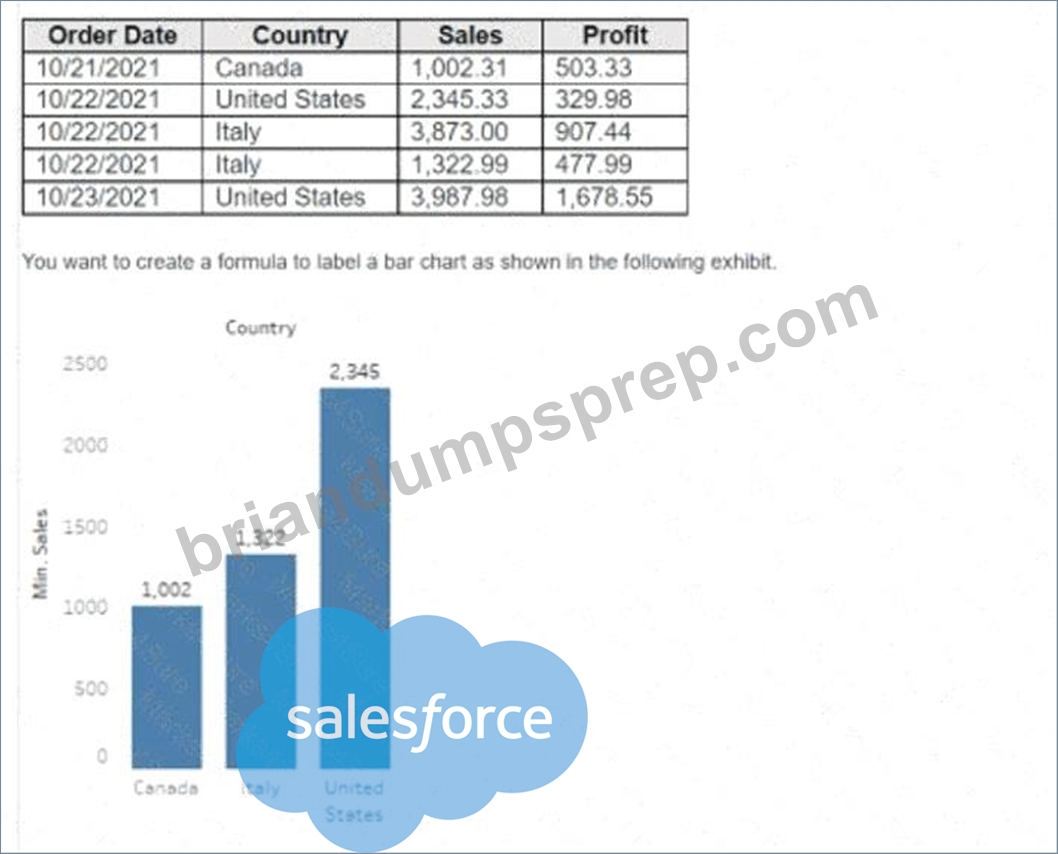
How should you complete the formula? (Drag the appropriate Options to the Answer Area and drop into the correct locations.)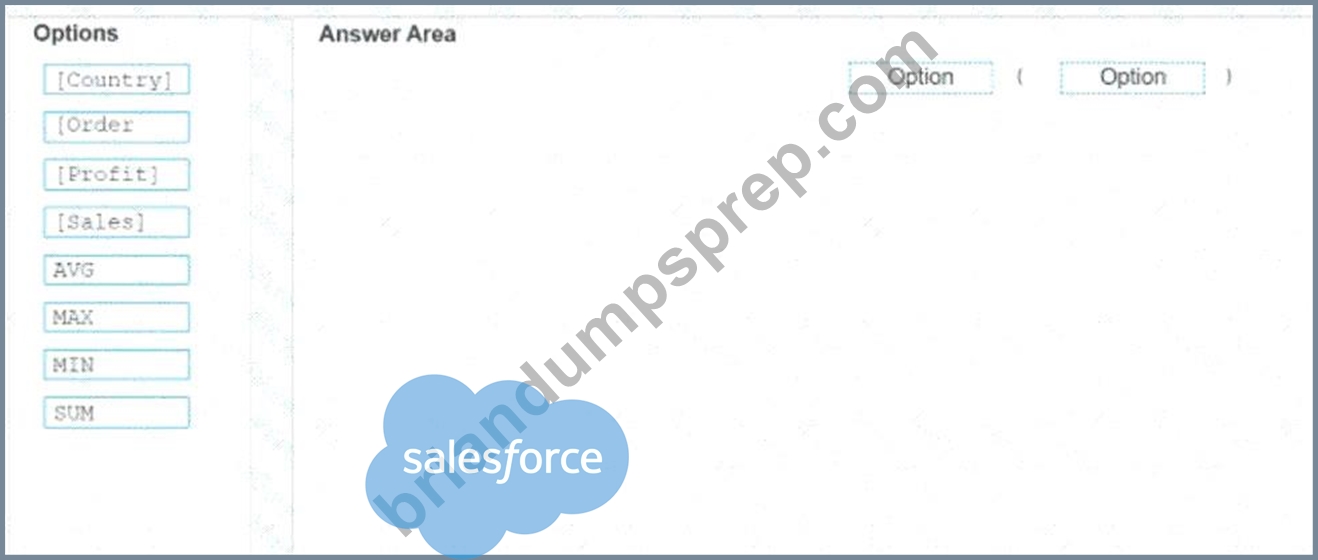
Answer:
Explanation: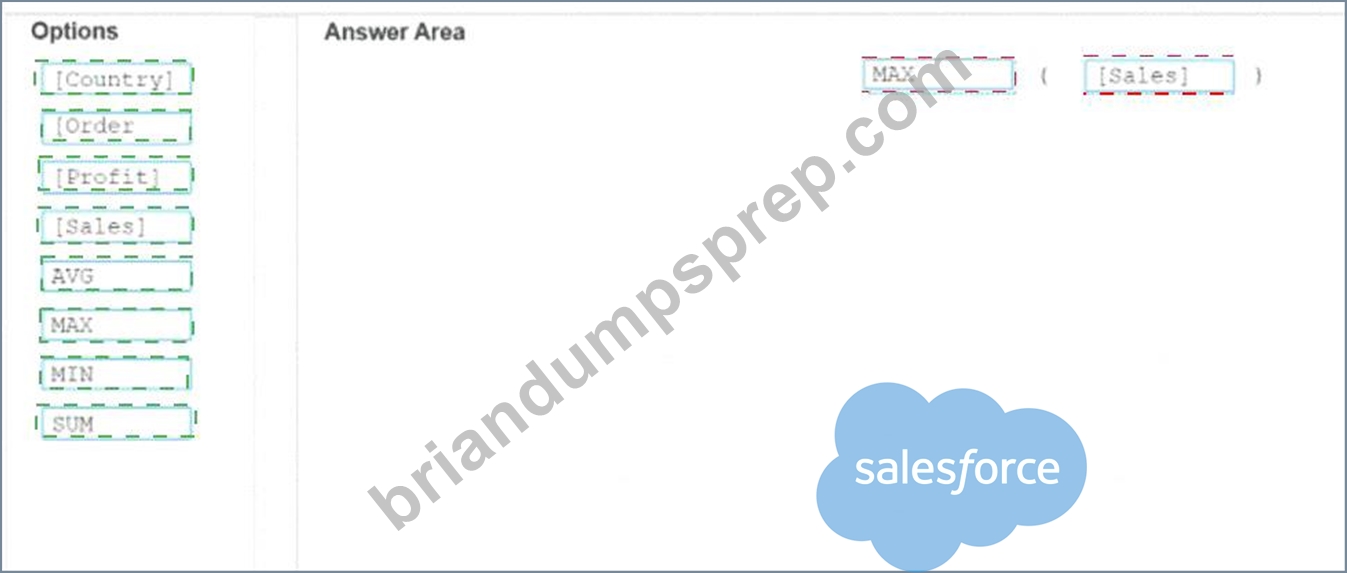
Explanation:
To complete the formula, you should drag the option MAX from the list of options and drop it into the first blank space, and then drag the option [Sales] and drop it into the second blank space. The formula will look like this: Option (MAX) Option ([Sales]). This formula will calculate the maximum value of the sales field for each country. You can use this formula to create a calculated field that will show the highest sales amount for each country in your data source. References:
* Create a Simple Calculated Field - Tableau
* MAX Function - Tableau
* Tableau Certified Data Analyst Study Guide
NEW QUESTION # 96
You have a dataset that contains people and the awards they have won.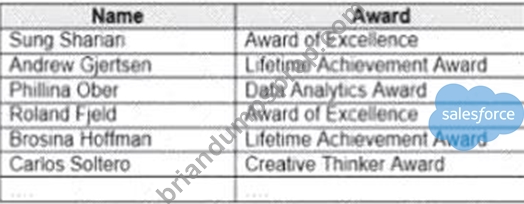
Which formula should you use to get the number of different types of awards that have been won?
- A. COUNTD {(NAME])
- B. MAX {(Award})
- C. INDEX()
- D. COUNTD({Award})
- E. COVAR({Award})
Answer: D
Explanation:
To get the number of different types of awards that have been won, you should use the formula COUNTD ({Award}). This formula will return the count of distinct values in the Award field, which are the different types of awards that have been won.
The other options are not correct for this scenario. COVAR({Award}) is not a valid function in Tableau. MAX ({Award}) will return the maximum value in the Award field, which may not be a type of award. INDEX() will return the index or rank of each row in a partition, which is not related to the types of awards. References:
https://help.tableau.com/current/pro/desktop/en-us/functions_functions_aggregate.htm#COUNTD https://help.
tableau.com/current/pro/desktop/en-us/functions_functions_tablecalculation.htm#INDEX The COUNTD function in Tableau calculates the number of distinct (unique) items in a field. When looking to get the number of different types of awards that have been won, the COUNTD([Award]) function will count each unique award name only once, regardless of how many times it appears in the dataset. This will return the total number of unique award types.
NEW QUESTION # 97
You publish a dashboard tut uses an attract. The extract refreshes every Monday at 10:00.
You need to ensure that the extract also refreshes on the last day of the month at 18:00.
What should you do?
- A. From Tableau Server. select Schedules find the schedule of the extract, and change the frequency to the Last day of the month
- B. From Tableau Server select the workbook select Refresh Extracts and then add a new extract refresh
- C. From Tableau Desktop, open the Publish Workbook dialog box and configure the schedule.
- D. From Tableau Server. select Schedules and change the priority of the existing schedule
Answer: B
Explanation:
To refresh an extract on Tableau Server, you need to select the workbook, select Refresh Extracts, and then add a new extract refresh. You can specify the frequency and time of the refresh, as well as any custom options. You can have multiple extract refreshes for the same workbook with different schedules. References:
https://help.tableau.com/current/server/en-us/refresh_extracts.htm https://help.tableau.com/current/server/en- us/refresh_extracts_add.htm On Tableau Server, you can manage the scheduling of extract refreshes by selecting the specific workbook and configuring additional refresh schedules as needed. This allows for multiple refresh triggers, such as the regular Monday at 10:00 AM schedule, as well as an additional trigger for the last day of the month at 18:00.
NEW QUESTION # 98
You have the following dashboard that contains two sheets.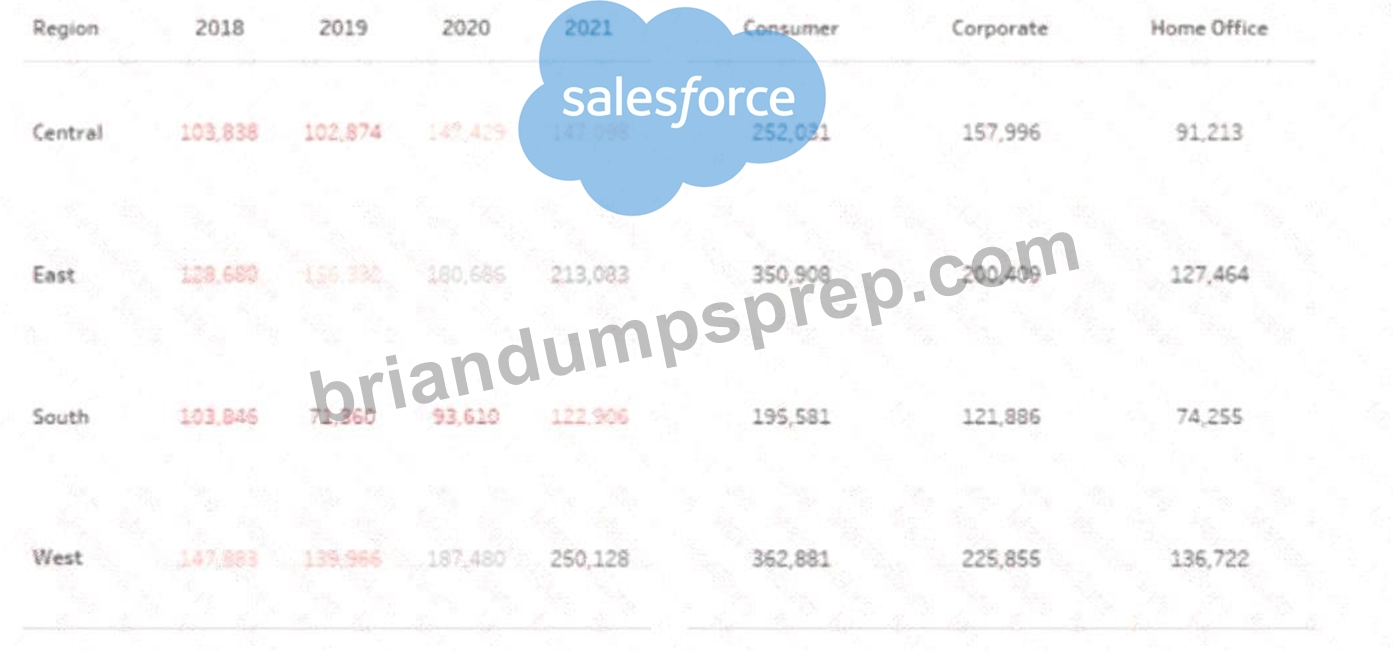
You want to minimize the whitespace between the sheets.
What should you configure?
- A. The padding
- B. The border
- C. The position
- D. The background
- E. The size
Answer: A
Explanation:
To minimize the whitespace between the sheets, you should configure the padding of the sheets and the dashboard. Padding is the amount of space between the edge of a sheet or dashboard and its content. You can adjust the padding by using the Layout tab in the Format pane. You can reduce the padding for each sheet by selecting the sheet and changing the values for the inner and outer padding. You can also reduce the padding for the dashboard by selecting the dashboard and changing the values for the outer padding. Reducing the padding will make the sheets and the dashboard more compact and eliminate unnecessary whitespace. References:
* Format Dashboards - Tableau
* Tableau Certified Data Analyst Study Guide
NEW QUESTION # 99
You have the following visualization.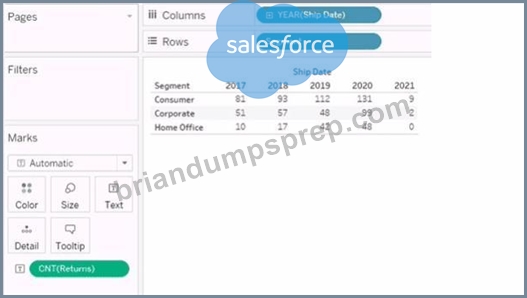
You want the count of Returns displayed only for the first year in the table.
How should you complete the formula in the calculated field? (Use the dropdowns in the Answer Area to select the correct options to complete the formula.)
Answer:
Explanation:
Explanation:
we need to create a calculated field that displays the count of returns only for the first year in the table. To do this, we can use the following formula:
IF FIRST () = 0 THEN COUNT (Returns) END
This formula uses the FIRST () function, which returns the number of rows from the current row to the first row in the partition. If the current row is the first row, then FIRST () returns 0. The IF statement checks if this condition is true, and if so, it returns the count of returns for that row. Otherwise, it returns NULL.
To complete the formula in the calculated field, you should select the following options from the drop-down menus:
* FIRST ()
* 0
* COUNT (Returns)
https://help.tableau.com/current/pro/desktop/en-us/functions_functions_date.htm
NEW QUESTION # 100
You need to change the values of a dimension without creating a new field.
What should you do?
- A. Transforms the fields
- B. Create aliases
- C. Rename the fields
- D. Create groups
Answer: B
Explanation:
You can create aliases for the members of a dimension by right-clicking the dimension in the Data pane or in the view and selecting Aliases. This changes how the values are displayed in the view, but not the underlying data. For example, you can create an alias for "Central" as "Midwest".
In Tableau, aliases can be used to change the way dimension members appear without altering the underlying data. This is useful for display purposes and does not create a new field within the dataset.
NEW QUESTION # 101
A Data Analyst has the following chart.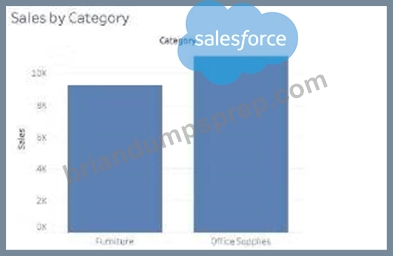
The analyst needs to enable the drilldown from Category to Subcategory as shown in the following chart.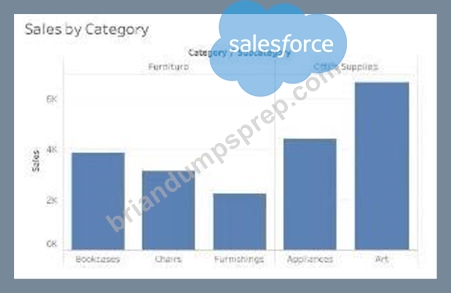
What should the analyst create?
- A. A hierarchy of Category and Subcategory
- B. A group of Category and Subcategory
- C. A bin for Category and a bin for Subcategory
- D. A combined set for Category and Subcategory
Answer: A
NEW QUESTION # 102
You create the following story that contains two story point.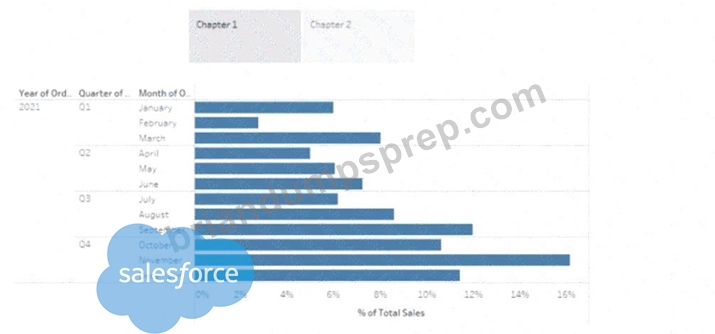
You want to change the story point format to show the current story point number out of the total number of story points.
Which Layout option should you use?
- A. Dots
- B. Numbers
- C. Arrows only
- D. Caption boxes
Answer: B
Explanation:
To change the story point format to show the current story point number out of the total number of story points, you should use the Numbers option in the Layout tab. This option will display the story points as numbers in a horizontal or vertical sequence, such as 1/2, 2/2. You can also choose to show or hide the next and previous arrows for navigation. The Numbers option will help you indicate the progress and order of your story points more clearly than the other options. References:
* Creating a Story - Tableau
* New in 9.0: Formatting the Story Points Navigator - Tableau
* Tableau Certified Data Analyst Study Guide
NEW QUESTION # 103
You have the following dataset that contain null values in the Profits field.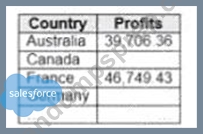
You want the data to appear as shown in the following table.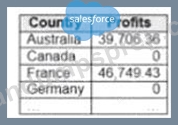
Which two formulas achieve the goal? Choose two.
- A. IFNULL [(profits] ,0)
- B. IF [Profits] != null then [Profits] END
- C. ISNULL ([Profits])
- D. ZN ([Profits])
Answer: A,D
Explanation:
Both the ZN and IFNULL functions in Tableau can be used to replace NULL values with zeros. The ZN function converts NULL to zero directly, while the IFNULL function allows you to specify that NULL should be replaced with zero. Both will result in showing zero for any NULL values in the Profits field.
References: https://help.tableau.com/current/pro/desktop/en-us/functions_functions_logical.htm#IFNULL
https://help.tableau.com/current/pro/desktop/en-us/functions_functions_logical.htm#IF https://help.tableau.
com/current/pro/desktop/en-us/functions_functions_logical.htm#ZN https://help.tableau.com/current/pro
/desktop/en-us/functions_functions_logical.htm#ISNULL
NEW QUESTION # 104
You have the following tiled dashboard that has one sheet.
You want to replace the sheet with Sheet2.
What should you do?
- A. Right-click Sheet2 and select Add to Dashboard.
- B. From the context menu of Sheet3. select Remove Dashboard item
- C. Drag Sheet2 to the dashboard.
- D. Select Sheet3 and click the Swap Sheet button next to Sheet2.
- E. From the context menu of Sheet3. select Deselect
Answer: C
Explanation:
In Tableau, to replace a sheet on a dashboard, you can simply drag the desired sheet (Sheet2 in this case) from the sheets list onto the dashboard area where the current sheet (Sheet3) resides. This action will replace the existing sheet with the new one. Right-clicking and adding to the dashboard adds an additional sheet rather than replacing, and the context menu options mentioned in the other choices are not the standard methods for replacing sheets within a dashboard.
NEW QUESTION # 105
A Data Analyst wants to create the following table in a view: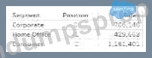
Which function should the analyst use to create the Position column?
- A. LAST
- B. RANK
- C. INDEX
- D. FIRST
Answer: D
NEW QUESTION # 106
A Data Analyst has a data source that contains data for every city in the United States. The following is a sample of the data.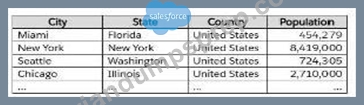
The analyst needs to use the City dimension to create a dynamic filter that shows the cities that have a population greater than 1 million.
Which type of filter should the analyst use?
- A. Top
- B. Special
- C. Condition
- D. Range
Answer: C
NEW QUESTION # 107
You have the following chart that shows the cumulative of sales from various dates.
You want the months to appear as shown in the following chart.
What should you do?
- A. Convert the date to Attribute
- B. Select Show Misting Values for the dale
- C. Convert the date to Exact Date
- D. Convert the date to Continuous
Answer: C
Explanation:
References: https://help.tableau.com/current/pro/desktop/en-us/dates.htm https://help.tableau.com/current/pro
/desktop/en-us/dates_continuous.htm https://help.tableau.com/current/pro/desktop/en-us/formatting.htm To ensure the dates are shown in a continuous axis, you should convert the date to a continuous field. This will display the months in a sequence without any breaks, which is needed for showing a trend over time like the cumulative sum of sales.
NEW QUESTION # 108
A Data Analyst wants to create the following table in a view:
Which function should the analyst use to create the Position column?
- A. LAST
- B. RANK
- C. INDEX
- D. FIRST
Answer: D
NEW QUESTION # 109
You plan to publish a workbook to Tableau Server.
You want to ensure that users can see other published dashboards from their current dashboard.
Which setting should you configure? (Click the appropriate Option in the Answer Area.)
Answer:
Explanation: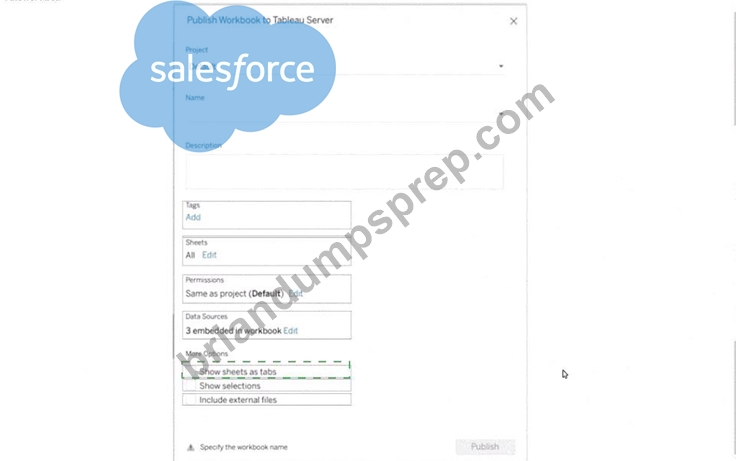
Explanation:
To achieve the requirement of letting users navigate between different published dashboards directly from their current dashboard, you need to enable the "Show sheets as tabs" option. This setting allows each sheet in your workbook, including dashboards, to be displayed as a tab, making it easy for users to switch between different views or dashboards within the same published workbook.
Here is the option you should configure:
* Check the Show sheets as tabs checkbox in the 'More Options' section.
This action will ensure that all sheets, when published to the Tableau Server, appear as tabs, facilitating user navigation across multiple dashboards included in the workbook.
NEW QUESTION # 110
A Data Analyst is using containers on a dashboard.
How should the analyst make sure multiple objects within a container are always taking up the same width or height, even if the container is resized?
- A. Float the objects and manually adjust the size
- B. Use the distribute evenly option
- C. Use the Layout tab to set the size of each object
- D. Adjust the size of each object individually
Answer: B
NEW QUESTION # 111
......
Salesforce Analytics-DA-201 Exam Syllabus Topics:
| Topic | Details |
|---|---|
| Topic 1 |
|
| Topic 2 |
|
| Topic 3 |
|
| Topic 4 |
|
Easy Success Salesforce Analytics-DA-201 Exam in First Try: https://www.briandumpsprep.com/Analytics-DA-201-prep-exam-braindumps.html
Best Analytics-DA-201 Exam Dumps for the Preparation of Latest Exam Questions: https://drive.google.com/open?id=1IkqBeEVJLfCfuPF2JZjE5VIzKemgeMci
